
For dedicated IPTV streaming, the Amazon Fire TV Stick family—particularly the Fire TV Stick 4K Max and Fire TV Cube—stands out as premier hardware. Featuring a powerful quad-core processor, specialized video decoding hardware, and advanced Wi-Fi 6E, these devices are engineered for seamless 4K streaming without interruptions. This comprehensive 2026 guide walks you through the entire process of setting up and fine-tuning your IPTV TV Stick on a Firestick.
What You'll Need First
- You'll need a Fire TV or Firestick device linked to your TV and your home network (via Wi-Fi or Ethernet).
- You will need an active IPTV TV Stick subscription, with your login details provided via WhatsApp or Email.
- This setup takes about 5 minutes to complete.
Step 1: Obtain the "Downloader" App
- On your Fire TV's main screen, proceed to the Find section and choose the Search option.
- Enter
Downloaderinto the search field. - Find the orange Downloader app in your search results. Then, choose Download or Get and let the installation complete.
Step 2: Activate Developer Options and Allow Unknown Sources
To enable the installation of top-tier IPTV applications such as IPTV Smarters Pro or TiviMate using the Downloader app, please follow this brief procedure:
- Navigate to Settings, which looks like a gear icon on your Firestick's main screen.
- Choose My Fire TV, followed by About.
- For Fire OS 2026 Users: To activate developer mode, tap your Fire TV Stick's name seven times in quick succession. A confirmation message will appear, stating: "No need, you are already a developer."
- Navigate back to My Fire TV by using the back button. The Developer Options menu should now be visible.
- Select Developer Options and then choose Install unknown apps.
- Locate Downloader from the list and activate the ON toggle.
Step 3: Fetch and Install Your Chosen IPTV Player
- Open the Downloader application from your collection of apps. Please provide storage access when the application requests it.
- In the URL entry field, type one of the following concise codes:
- For IPTV Smarters Pro: Input the code
78522then press Go. - For TiviMate IPTV Player: Input the code
278077then press Go.
- For IPTV Smarters Pro: Input the code
- The package for installing the APK will be fetched automatically. Upon completion, press Install.
- After installation, tap Open to begin using your IPTV player.
Step 4: Enter Your IPTV TV Stick Login Details
- On the initial screen of IPTV Smarters or TiviMate, choose the Login with Xtream Codes API option (or Add Playlist).
- Input the credentials provided in your purchase confirmation message:
- A Label for Your Service:
IPTV TV Stick 4K - Your Login Name: [Your unique username sent via WhatsApp]
- Your Secret Code: [Your custom password sent via WhatsApp]
- The Server Address: [Your specific cluster address from WhatsApp]
- A Label for Your Service:
- Select Add User or Login. Within a minute, your player will be populated with channel groups, live sports listings, and the extensive 142,000+ VOD library.
Expert Advice for Smooth Streaming on Firestick
- To maximize performance, activate Hardware Decoding within your IPTV player's configuration. Change the Video Decoder setting to Hardware (HW+) so your Firestick's graphics processing unit handles the video.
- To prevent playback interruptions from unstable Wi-Fi, configure the buffer size. Adjust your buffer cache to Medium or Large (3-5s) for a smoother experience.
- To maintain optimal performance and free up memory on your Firestick, remember to Clear Cache Weekly. Access this function via Settings > Applications > Manage Installed Applications > Clear Cache.
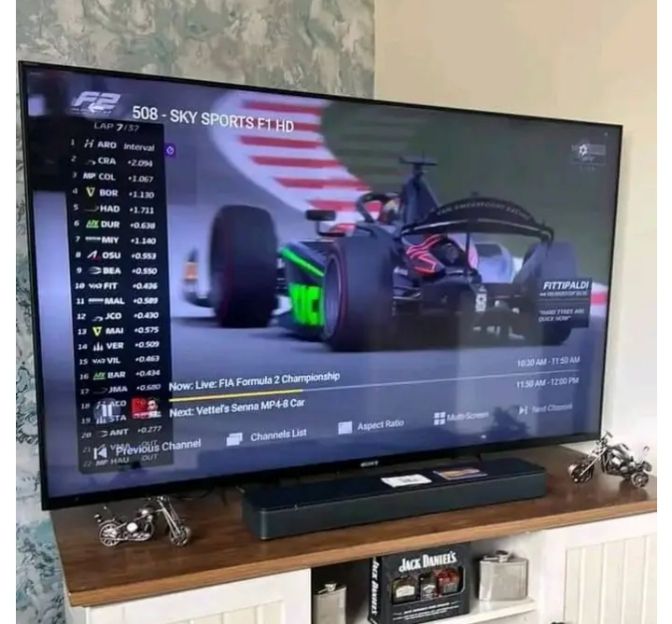
Upgrade Your 4K Viewing Experience Today
Experience seamless streaming with the IPTV TV Stick, trusted by more than 15,000 happy users throughout Europe.
Access Instantly →